


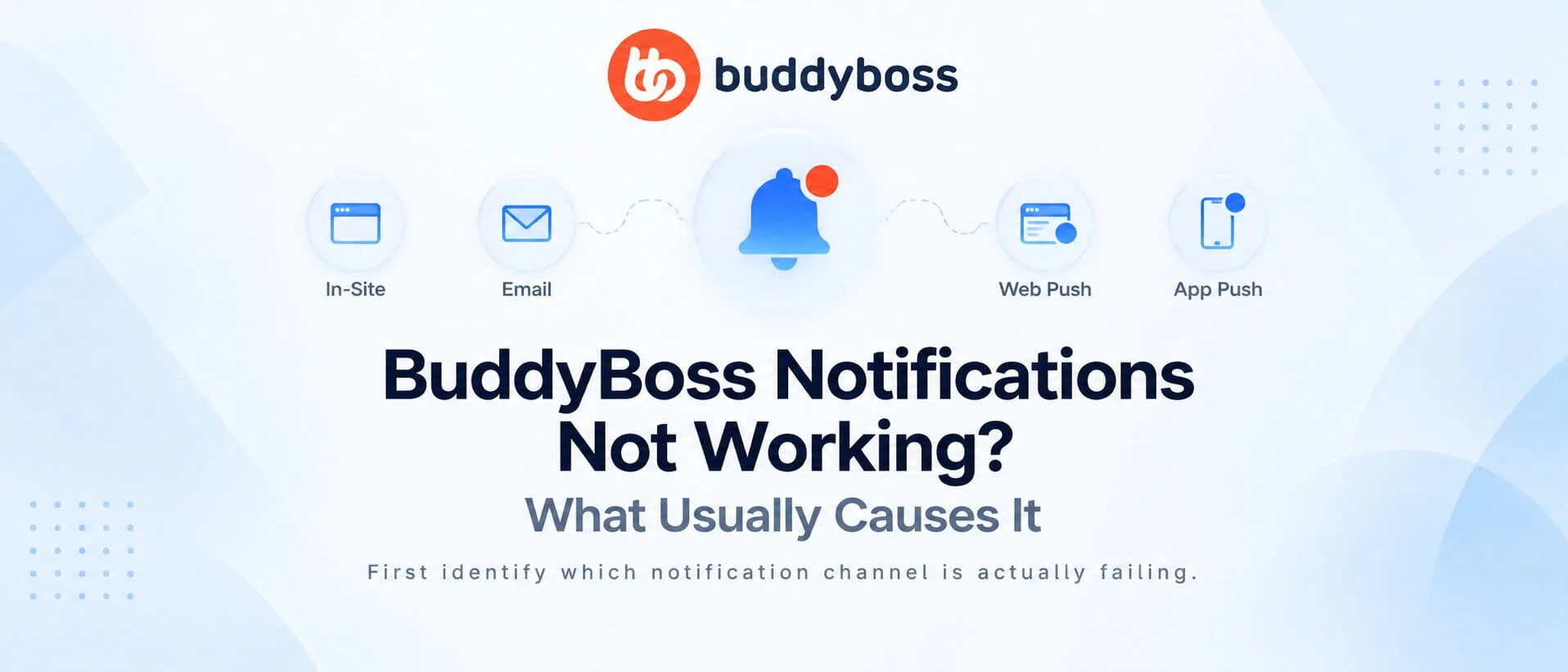
If your BuddyBoss notifications are not working, the first mistake is assuming there is one notification system to fix.
There are actually several different delivery channels:
- in-site notifications
- email notifications
- web push notifications
- BuddyBoss App push notifications
Those channels do not fail for the same reasons.
A notification can exist correctly inside BuddyBoss but never reach email.
Email can work while web push fails because the browser never granted permission.
App push can fail because Firebase or device registration is wrong while the website itself is working perfectly.
That is why I would diagnose the notification channel first, then the delivery path behind it.
BuddyBoss Notifications Not Working: The Short Answer
When BuddyBoss notifications stop working, I usually separate the problem into four questions:
1. Was the notification event actually triggered?
2. Is that notification type enabled?
3. Does the member allow that channel?
4. Can the delivery system actually send it?
The answer may be different for:
- in-site alerts
- browser push
- mobile app push
BuddyBoss currently gives administrators and members control over different notification channels and notification types, while some channels also depend on external delivery infrastructure such as WordPress mail, OneSignal, or Firebase.
That means the right troubleshooting process is not:
“BuddyBoss notifications are broken.”
It is:
“Which part of the notification path is failing?”
First Identify Which Notification Channel Is Broken
This is the most important step.
If a member says:
“I am not getting notifications.”
I would immediately ask:
Where are you expecting to receive them?
In-site
These are the alerts a member sees inside the BuddyBoss community itself.
These are BuddyBoss-generated notification emails delivered through WordPress mail and your configured email infrastructure.
Web push
These are browser notifications delivered even when the member is not actively viewing the site, depending on browser permission and the configured web-push service. BuddyBoss currently uses OneSignal for web push integration.
App push
These are native mobile notifications sent to BuddyBoss App users through Firebase and the device notification system.
A site can have one of these channels working perfectly while another is completely broken.
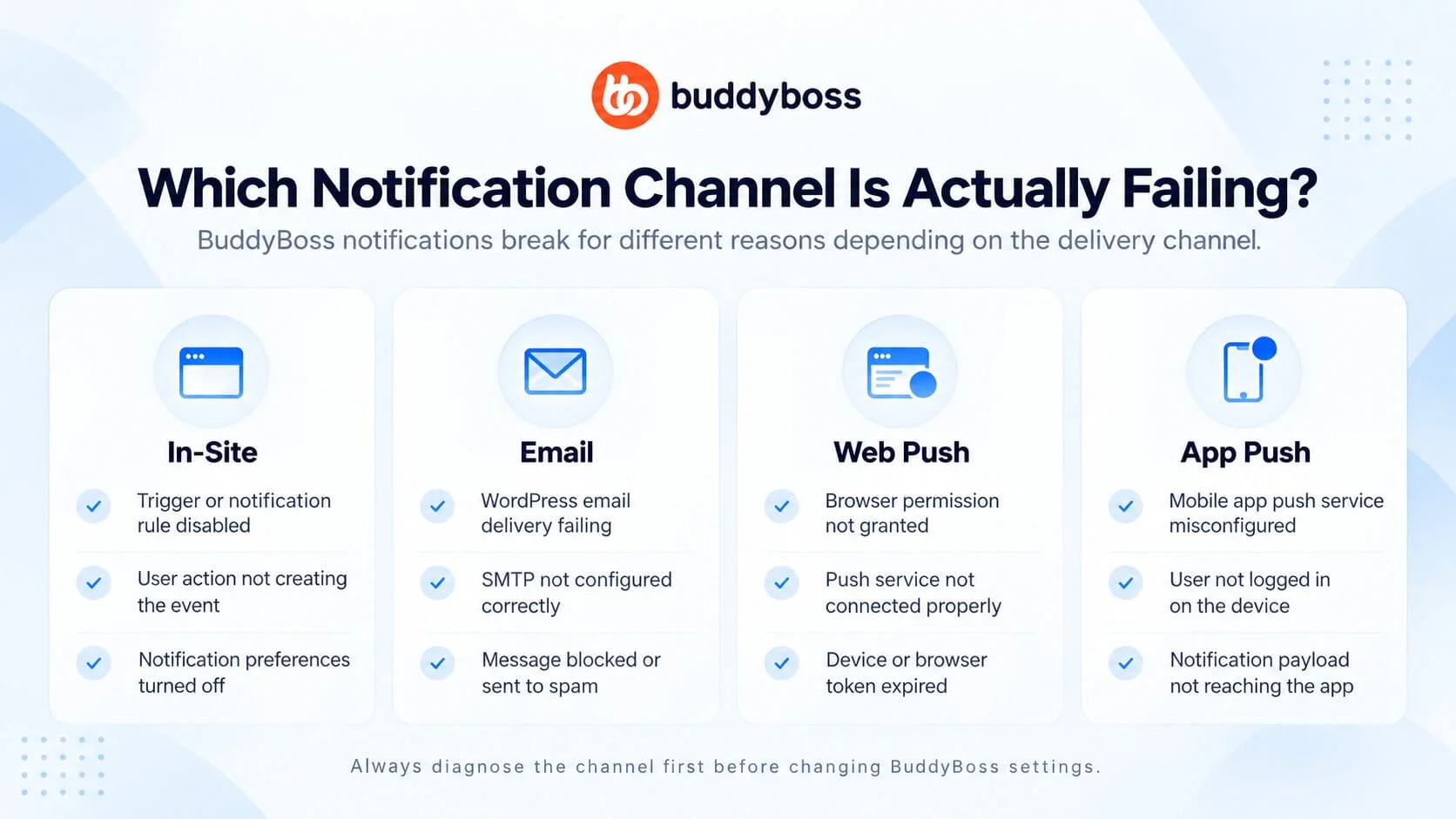
In-Site Notifications vs Email vs Web Push vs App Push
It helps to think of each channel as its own delivery path.
In-site notification
User action → BuddyBoss event → notification record → member notification list
Email notification
User action → BuddyBoss event → BuddyBoss email → WordPress mail → SMTP/provider → inbox
Web push
User action → BuddyBoss event → OneSignal → browser permission → device/browser notification
App push
User action → BuddyBoss event → BuddyBoss App push → Firebase → registered device → operating system notification
Those paths have different failure points.
That is why a generic “notifications do not work” diagnosis usually wastes time.
The Notification Type May Be Disabled
BuddyBoss lets administrators control different email and notification types.
Its current component-email settings include categories such as:
- registration
- groups
- forums
- activity
- private messaging
- connections
- invites
Individual email notifications can also be disabled.
So before troubleshooting SMTP, Firebase, caching, or custom code, I would check something much simpler:
Is the notification type actually enabled?
For example, if:
- new-message emails are disabled
- group invitations are disabled
- a specific automated push type is not enabled
then nothing downstream can deliver it.
That sounds obvious, but it is one of the first things worth checking.
Member Notification Preferences Can Override Expectations
The site administrator may enable a notification type globally.
That does not always mean every member receives it through every channel.
Members can have their own notification preferences depending on the feature and delivery channel.
That creates an important distinction:
available notification
is not always the same thing as:
notification the member has chosen to receive
If only one user reports the issue while everyone else receives notifications normally, I would investigate that user’s preferences before changing platform-wide settings.
Private Message Notifications Can Be Intentionally Hidden
Private messaging is a good example of why notification behavior can look broken when it is actually configured correctly.
BuddyBoss currently has a Hide messages from notifications option.
When enabled, private and group message notifications do not appear in the normal notification list or unread notification total.
However, BuddyBoss states that those messages can still be delivered through email, web push, or app push, and unread message counts still remain in the messaging system.
So a member might say:
“The notification bell is not showing my new messages.”
That may be expected behavior.
The message system is working.
The notification list has simply been configured not to show those message events.
Private Message Emails May Be Delayed
BuddyBoss also currently allows email notifications for new messages to be delayed.
This is useful because it reduces unnecessary email.
Imagine:
- A member receives a private message.
- BuddyBoss waits before sending the email.
- The member reads the message on the site during that delay.
- BuddyBoss does not send the email.
That can easily produce a support request:
“BuddyBoss did not send the message notification.”
But nothing failed.
The member already read the message before the delayed notification was due.
BuddyBoss can also combine multiple unread messages from the same conversation into a single delayed email.
So before calling message emails unreliable, I would check whether delayed message notifications are enabled.
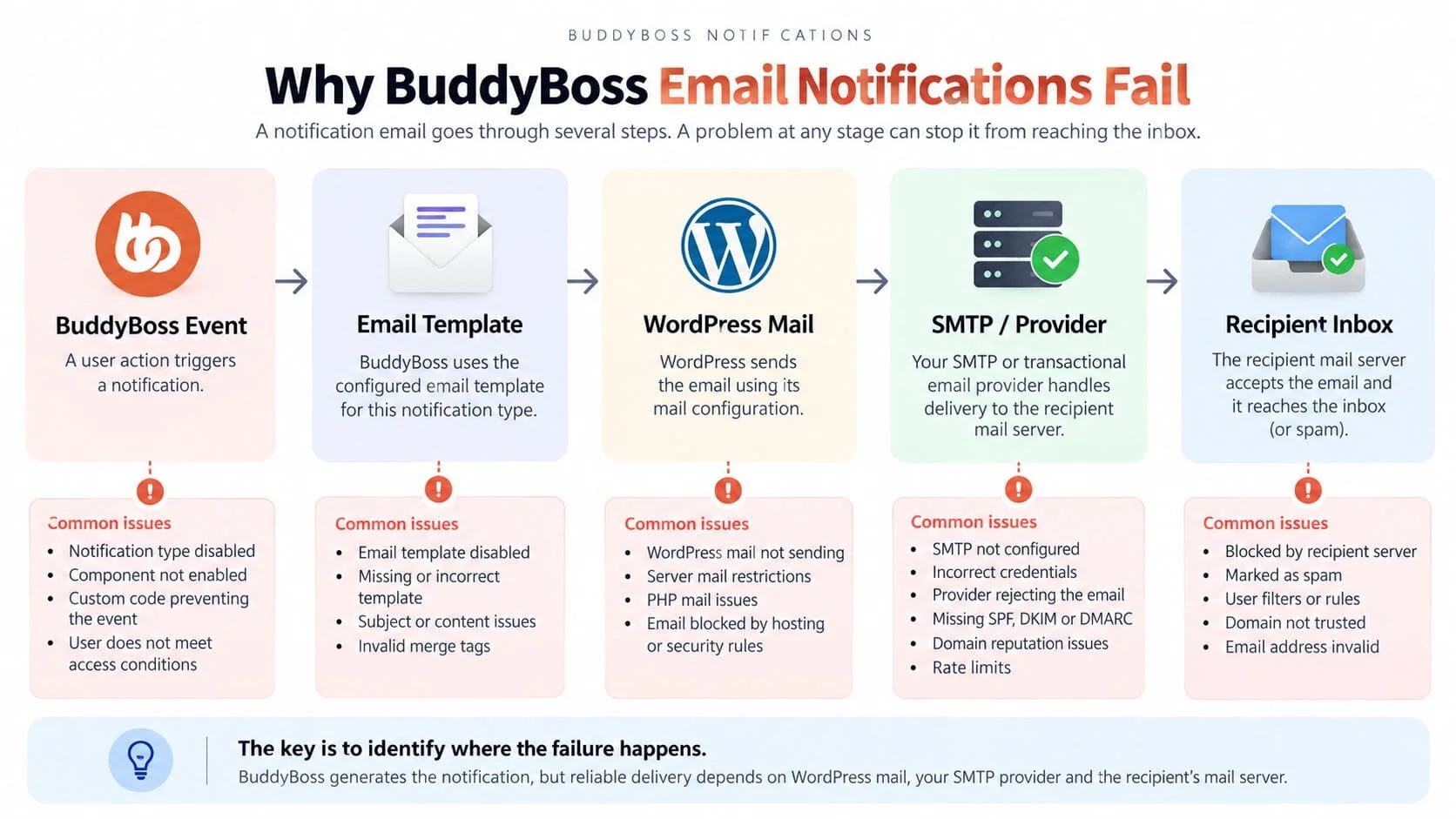
Why BuddyBoss Email Notifications Often Fail
Email notifications have more moving parts than in-site notifications.
BuddyBoss may generate the notification correctly.
Then WordPress still has to send the email.
Then the receiving mail server has to accept it.
A simplified flow looks like this:
BuddyBoss event → BuddyBoss email template → WordPress mail → SMTP / transactional email provider → Recipient mail server → Inbox or spam
A problem at any stage can look like a BuddyBoss problem.
WordPress Mail Is Not the Same as Reliable Email Delivery
This is an important distinction.
WordPress can generate mail using its normal mail functions.
That does not guarantee reliable delivery.
BuddyBoss’s own email documentation recommends checking WordPress email configuration and using SMTP when BuddyBoss emails are not being delivered.
For a serious membership or community platform, I would prefer a proper transactional email setup instead of assuming the web server should deliver important messages itself.
That may include:
- SMTP provider
- transactional email service
- SPF
- DKIM
- DMARC
- domain reputation monitoring
If BuddyBoss is generating emails correctly but users are not receiving them consistently, I can review the BuddyBoss and WordPress delivery flow before more notification plugins are added.
SMTP and Transactional Email
SMTP solves a different problem from BuddyBoss.
BuddyBoss decides:
What email should be sent?
The SMTP or transactional provider handles:
How that email gets delivered.
That separation matters.
A good troubleshooting process would test:
- Does BuddyBoss create the expected email?
- Does WordPress attempt to send it?
- Does the SMTP provider receive it?
- Does the provider accept or reject it?
- Does the recipient server accept it?
- Does the message reach inbox or spam?
Without that visibility, people often keep changing BuddyBoss settings when the failure is actually further downstream.
BuddyBoss Email Templates Can Be Missing or Disabled
BuddyBoss provides editable email templates for different community events.
Its current component-email configuration includes templates for registration, group activity, forums, private messages, connections, and invitations.
So I would check:
- Is the correct email type enabled?
- Does the template exist?
- Is the subject valid?
- Are required merge tags correct?
- Does a test email send?
- Does the frontend action actually trigger that email?
A notification system should be tested from the real user action, not only by clicking a generic email test button.
Why Web Push Notifications Do Not Appear
Web push introduces another layer.
BuddyBoss currently supports web push through OneSignal integration.
The setup involves:
- BuddyBoss Platform Pro
- OneSignal
- App ID
- REST API Key
- browser permission
- notification settings
BuddyBoss’s current documentation says the integration needs to be connected successfully before web push can be delivered.
If web push is failing, I would check:
- Is web push enabled?
- Is OneSignal connected?
- Are the API credentials correct?
- Did the member opt in?
- Is browser permission allowed?
- Is the notification type enabled?
- Is the member currently active?
Browser Permission Is Easy to Miss
Browsers control whether websites can display push notifications.
That means BuddyBoss can be configured correctly while the user’s browser simply says:
Notifications: Blocked
BuddyBoss currently supports both automatic permission requests and a softer pre-permission prompt before the browser’s native notification request.
If the member denies the browser prompt, BuddyBoss cannot simply override that decision.
So if web push works for some users and not others, browser permission should be one of the first checks.
Skip Active Members Can Make Web Push Look Broken
BuddyBoss currently includes a Skip Active Members option for web push.
When enabled, members who are currently active on the site are intentionally not sent push notifications. Push resumes when they are no longer active.
That can create confusing testing.
An administrator opens the site in one tab.
They trigger a notification from another account.
No browser push appears.
They conclude:
“Web push is broken.”
But the member is considered active.
The platform is behaving exactly as configured.
This is why notification testing should use realistic test conditions.
BuddyBoss App Push Notifications Depend on Firebase
Mobile app push has another set of dependencies.
BuddyBoss App currently uses Firebase for push delivery and requires the Push Notifications component to be enabled.
The delivery chain looks more like:
BuddyBoss event → BuddyBoss App push settings → Firebase Cloud Messaging → registered mobile device → iOS / Android permission → notification
If any link in that chain is wrong, the notification may never appear.
Firebase Configuration Problems
BuddyBoss’s own troubleshooting guidance recommends verifying Firebase credentials when app push notifications do not arrive.
That can involve:
- Server Key
- Sender ID
- Firebase project
- iOS configuration
- Android configuration
- app package/bundle identifiers
- APNs configuration for iOS
This is not something I would try to diagnose by changing random BuddyBoss notification settings.
I would verify the actual push infrastructure.
Device Registration Matters
Firebase can only send the notification to a device it knows about.
BuddyBoss specifically notes that devices should be registered when troubleshooting missing app push notifications.
So a useful test is:
- Sign into the BuddyBoss App with a known test member.
- Confirm notification permission is enabled at the OS level.
- Trigger a supported notification.
- Verify the device is registered.
- Test both an automatic and manual push.
BuddyBoss’s own app-launch testing workflow recommends using test accounts to trigger actions such as messages, mentions, and friend requests when validating automatic push delivery.
Some Notification Types May Not Be Enabled for the App
BuddyBoss App allows administrators to enable or disable automatic notification types.
Only enabled notification types appear in members’ app notification settings.
So if:
- private-message push works
- mentions work
- group invitations do not
that does not automatically mean Firebase is broken.
The specific notification type may simply not be enabled.
Why Some Users Get Notifications and Others Do Not
This is one of the most useful diagnostic clues.
If nobody receives the notification, I would suspect:
- global settings
- trigger failure
- email infrastructure
- push service configuration
- custom-code conflict
If only one user does not receive it, I would look at:
- that member’s preferences
- browser permissions
- app permissions
- device registration
- membership state
- user role/profile restrictions
- email address
- spam filtering
That distinction can save a lot of debugging time.
Membership and Access Rules Can Affect Notification Behavior
BuddyBoss often sits inside a larger platform.
The same site may also have:
- LearnDash
- MemberPress
- Paid Memberships Pro
- WooCommerce
- BuddyBoss access controls
- custom user roles
BuddyBoss Pro supports member access controls based on conditions such as WordPress roles, profile types, membership levels, and LearnDash Groups or memberships.
If a notification depends on access to a Group, course, feature, or membership state, the root problem may actually be the entitlement architecture.
The notification system may be fine.
The user may not qualify for the event in the first place.
If your BuddyBoss notifications depend on memberships, LearnDash, Groups, or paid access, I would review the LMS and community architecture together rather than debugging the notification channel in isolation.
Plugin Conflicts and Custom Code
Notifications can also break after:
- custom hooks
- plugin updates
- membership integration changes
- caching changes
- custom notification logic
- automation tools
- theme overrides
The useful question is:
What changed immediately before notifications stopped working?
If the answer is:
“We added custom code for Group membership.”
or:
“We changed how members are enrolled.”
then that change deserves attention before rebuilding the email system.
Custom notification workflows are especially sensitive because they depend on event hooks firing at the correct point.
If the wrong hook is used, the notification may never be generated.
Caching and Background Processing
Caching is not usually the first thing I blame for notifications.
But it can matter when:
- dynamic endpoints are cached incorrectly
- API requests are stale
- scheduled jobs are delayed
- background processing is blocked
- notification counts are not updating
- app/API responses are being cached during testing
BuddyBoss’s app documentation even notes that API caching can be disabled during testing when diagnosing caching or API issues.
The important point is not:
disable every cache
It is:
identify whether caching sits in the path that is failing.
Delayed Notifications Are Not Always Broken Notifications
Timing matters.
A notification may be:
- immediate
- deliberately delayed
- grouped with another notification
- skipped while the member is active
- suppressed because the message has already been read
This is why testing with a stopwatch mentality can be misleading.
Before calling a notification late or missing, check whether the channel has deliberate timing rules.
Private-message email delay and Skip Active Members for web push are two good examples.
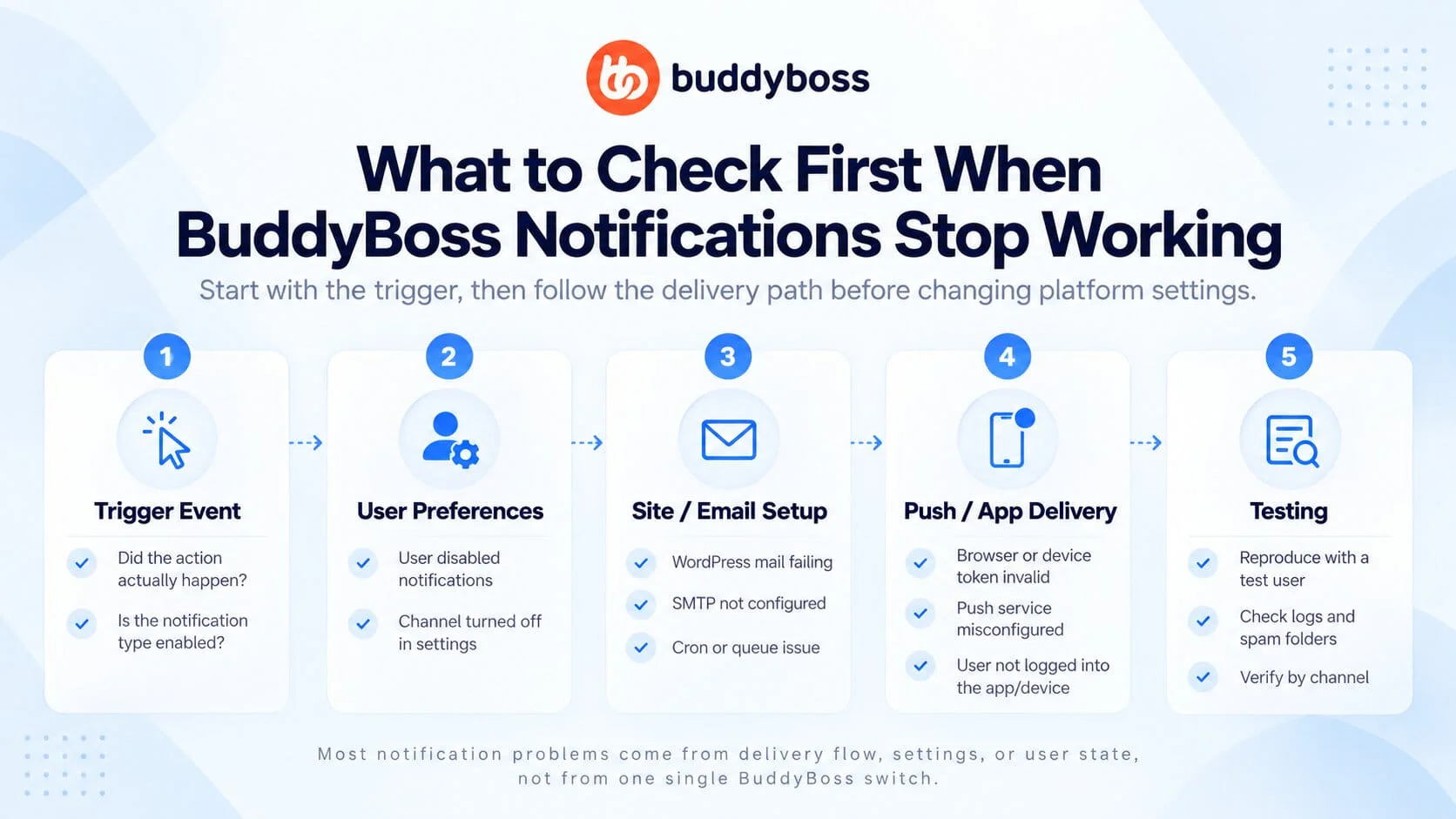
What I Would Check First When BuddyBoss Notifications Stop Working
I would diagnose the system in this order.
1. Trigger Event
Ask:
- Did the action actually happen?
- Is that action supposed to generate a notification?
- Is the notification type enabled?
Examples:
message sent
mention created
Group invitation sent
connection request created
If no notification record should exist, there is no reason to troubleshoot SMTP yet.
2. User Preferences
Check:
- has the member disabled the notification?
- is the channel enabled?
- is message visibility configured differently?
- does the user have the required access?
3. Site / Email Setup
For email:
- is the BuddyBoss email enabled?
- does WordPress send mail?
- is SMTP configured?
- does the provider accept the message?
- is it landing in spam?
4. Push / App Delivery
For web push:
- OneSignal connection
- browser permission
- active-member settings
For app push:
- Firebase configuration
- device registration
- OS permission
- enabled notification types
5. Test With a Controlled User
Use a dedicated test account.
Then reproduce one event at a time.
Do not test:
- web push
- app push
- private messages
- Groups
all at once.
Isolate the channel.
Symptom vs Most Likely Layer
|
Symptom
|
First area I would investigate
|
|---|---|
|
Notification appears on-site but no email arrives
|
WordPress mail / SMTP / email template
|
|
Email works but browser push does not
|
OneSignal / browser permission
|
|
Web works but app push does not
|
Firebase / device registration
|
|
Only one user has the problem
|
User preferences / permissions / device
|
|
Private messages exist but bell does not update
|
Messaging notification visibility
|
|
Message email sometimes does not send
|
Delay-email setting / message already read
|
|
Nothing happens anywhere
|
Trigger / notification type / plugin conflict
|
|
Issue started after customization
|
Hooks / custom code / integration
|
This is much more useful than changing settings randomly.
BuddyBoss Notification Troubleshooting Checklist
Before I would call the problem resolved, I would check:
BuddyBoss
- correct component enabled
- notification type enabled
- messaging-notification settings
- member preferences
- access controls
- BuddyBoss template enabled
- test email works
- WordPress mail works
- SMTP/provider configured
- SPF/DKIM/DMARC
- spam/rejection logs
Web Push
- BuddyBoss Pro
- OneSignal connected
- App ID correct
- API key correct
- member opted in
- browser permission allowed
- Skip Active Members understood
BuddyBoss App
- Push Notifications component enabled
- Firebase configured
- correct app credentials
- device registered
- notification type enabled
- mobile OS permission enabled
Development
- custom hooks
- plugin conflicts
- background jobs
- API/caching
- recent updates
- integration changes
That gives you a much clearer troubleshooting path.
When Custom Development Is Actually Needed
Most notification issues do not require custom development.
They need configuration or delivery diagnosis.
Custom development becomes relevant when the business wants behavior such as:
- notification based on custom membership events
- course-progress notifications
- CRM-driven notifications
- custom Group activity triggers
- special escalation rules
- role-specific notification logic
- custom app deep links
- cross-platform event synchronization
In that case, I would still keep the architecture clear:
business event → notification rule → delivery channels
not:
random hooks scattered across plugins
If notifications stopped after a customization or integration was introduced, I can trace the BuddyBoss event and delivery flow and identify whether the failure is in the trigger, notification logic, or delivery layer.
Final Recommendation
When BuddyBoss notifications are not working, do not start by changing every notification setting.
Start by identifying the channel.
Ask:
Is the problem in-site, email, web push, or app push?
Then follow that channel from beginning to end.
For email:
BuddyBoss event → template → WordPress mail → SMTP → inbox
For web push:
BuddyBoss event → OneSignal → browser permission → notification
For app push:
BuddyBoss event → Firebase → registered device → OS permission → notification
And always verify the event itself first.
A notification cannot be delivered if it was never created.
That is the difference between troubleshooting the system and simply trying settings until something changes.